

7 Steps to Set Up Remote Monitoring for Your Business
Quick Summary
Remote monitoring for commercial security systems lets you view live video, review recordings, receive alarm alerts and control access to your premises from any location. It usually combines these functions, and some businesses add professional monitoring from a staffed response center. The right setup depends on your site's size, entry points and connectivity.
Remote monitoring typically includes live video, recorded footage, alarm notifications and access control.
Older hardwired alarm systems often offer little or no remote access, so check compatibility first.
Plan upload bandwidth around the number and resolution of cameras you view remotely.
Change default camera passwords and keep firmware updated to protect remote access.
Compare total contract cost over the full term, not just the installation fee.
Ready to set up remote monitoring?
Bay Safe and Lock designs and installs commercial security and access control for Plant City businesses.
Table of Contents
What Remote Monitoring Covers in a Commercial Security System
Types of Security Systems for Business and Which Support Remote Access
Business Security Systems With Cameras: Equipment and Network Needs
Step-by-Step: Configuring Remote Monitoring From Setup to First Alert
Business Alarm Systems Pricing and What Monitoring Costs Over Time
Monitoring Workflows, Response Times and Keeping Power and Connectivity Running
Choosing Commercial Security Systems Companies and Booking Your Estimate
Last Updated: November 20, 2026
Last Updated: November 20, 2026
What Remote Monitoring Covers in a Commercial Security System
Remote monitoring for commercial security systems lets you see, control and receive alerts about your business premises from any location.
Remote monitoring typically combines several functions. Live video lets you view a site in real time. Recorded footage lets you review events after they happen.
Some businesses also add professional monitoring, where a staffed alarm response center watches alerts around the clock and contacts you or the authorities when needed.
Knowing these components helps you decide what your business needs before you buy anything.
Remote monitoring also depends on your system's connectivity.
Types of Security Systems for Business and Which Support Remote Access
Not every commercial security system supports remote access. Older hardwired systems often require a keypad on site and offer little or no mobile control. Newer IP-based and cloud-connected systems are built for remote use from the start.
Here is how the main types compare:
System Type | Remote Access | Best For | Typical Limitation |
Hardwired alarm system | Limited or add-on only | Basic intrusion alerts | Little live video or app control |
Wireless alarm system | Usually supported | Small offices, retail | Depends on signal strength |
IP camera system with NVR | Supported | Live video and recordings | Requires network setup |
Cloud-based access control | Supported | Multi-door sites, remote lock control | Ongoing subscription fees |
Integrated security platform | Supported | Businesses wanting alarms, video and access in one app | Higher upfront cost |
A common mistake is buying a system based on camera count alone. Check whether the platform supports mobile apps, multi-user access and alert customization. Those features determine how useful remote monitoring will be day to day.
Ask the vendor whether remote features are included at no extra cost or require a monthly plan. Many systems charge separately for cloud storage or professional monitoring.
Business Security Systems With Cameras: Equipment and Network Needs
Camera-based remote monitoring depends on three things: the cameras, the recording device and the network. Weakness in any one of them causes gaps in coverage. Network and power planning matter as much as camera selection, so treat this section as part of the design phase.
Cameras and Recording
Most commercial installations use IP cameras connected to a network video recorder (NVR). Cameras with higher resolution produce better identification images but also use more bandwidth. Plan your upload speed around the number of cameras and their resolution, not just your download speed. If you record continuously rather than on motion, size the NVR's storage so you retain footage for the period your business, insurer or legal counsel requires, Retention requirements vary by business and sector, so confirm them with your insurer or legal counsel.
Bandwidth Planning
Add up the upload demand of every camera you intend to view remotely, then leave headroom for normal business traffic such as point-of-sale, phones and guest Wi-Fi. A common pattern is to place security devices on a separate network segment or VLAN so camera traffic does not compete with business systems and so a compromised camera cannot reach payment or file servers. Where possible, reserve static IP addresses for recorders and cameras so remote connections stay reliable after a router reboot.
Power Resilience
Cameras that lose power stop recording and transmitting. Consider battery backup or uninterruptible power supplies (UPS) for the recorder, router and cameras, especially in areas with frequent outages. Size the UPS around the load of the recorder and network gear first, those are the devices that keep recordings and remote access alive, then add cameras as budget allows. Follow the manufacturer's maintenance schedule for backup batteries rather than waiting for a failure.
Connectivity Resilience
A single internet connection is a single point of failure. Many commercial systems support cellular failover, where a LTE or 5G modem takes over if the primary connection drops, so alarms and remote viewing continue during an outage. Ask whether your platform supports dual-WAN or cellular backup and whether the failover is automatic. Also confirm what happens locally when the internet is down: a recorder with on-board storage should keep recording even if remote viewing is unavailable, and alarms should be able to transmit over the cellular path.
What Happens During an Outage
Walk through the failure modes before you buy. If power fails, does the UPS carry the recorder and router long enough for you to respond? If the internet fails, do alarms still reach the monitoring center or your phone?
Watch out: many security cameras are sold with default login credentials printed on the packaging. Change them before the device joins your network, and put security devices on their own segment so an exposed camera cannot be used as a path into business systems.
Step-by-Step: Configuring Remote Monitoring From Setup to First Alert
Follow these steps to set up remote monitoring for a typical commercial site. The sequence applies whether you use a cloud platform or an on-premises recorder.

Map your coverage needs. List entry points, cash areas, storage rooms and any restricted zones. Note which areas need live view, recording or alerts only.
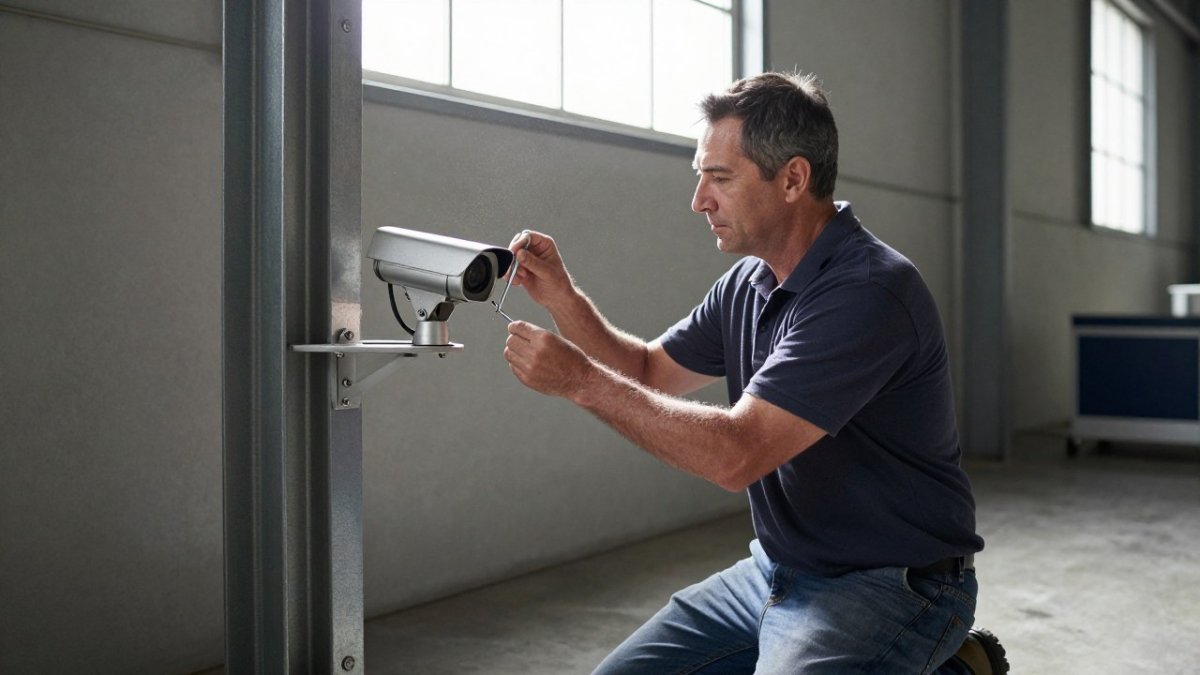
Install and mount devices. Position cameras and sensors according to your map. Test field of view at the time of day when most activity occurs.
Connect devices to the network. Assign static IP addresses or reserve them in your router so remote connections stay reliable.
Create the system account. Register the platform under a business email address, not a personal one, so access survives staff changes.
Add users and permissions. Give each person only the access their role needs. Owners may need full control, while employees may only need alert notifications.
Set alert rules. Choose which events trigger notifications, such as a door opening after closing time or motion in a stockroom.
Run a test and confirm the first alert. Trigger a sensor or open a door, then confirm the notification reaches the correct phone or email. Record the time it took.
Time estimate: Most small sites finish setup in one to two days. Larger sites with many devices take longer.
Securing the Network and Mobile Access
Remote access creates a path into your business from the internet, so protect it carefully. Change default passwords on every device. Enable two-factor authentication on the account used for the mobile app.
Keep firmware updated on cameras, recorders and routers. Outdated firmware is a common entry point for attackers.
Limit mobile access to company-managed phones where possible. If an employee leaves, remove their access the same day.
Watch out: many security cameras are sold with default login credentials printed on the packaging. Change them before the device joins your network.
Business Alarm Systems Pricing and What Monitoring Costs Over Time
Pricing for commercial alarm and monitoring systems varies widely with the size of the site, the number of devices and the level of service. Bay Safe and Lock does not publish standard rates for these services, so pricing depends on your specific property and requirements. Contact us for a quote based on your site. What follows is the cost structure to expect so you can compare proposals on equal terms rather than on the headline installation number.
The Cost Components
A commercial remote monitoring quote usually bundles several line items. Ask for each one separately:
Equipment: cameras, recorders, sensors, access-control readers and the network gear that supports them.
Installation and configuration: labor, cabling, mounting and the setup steps covered earlier in this guide.
Monitoring service: the recurring fee for a staffed response center, if you use professional monitoring rather than self-monitoring.
Cloud storage or remote viewing: many platforms charge separately for cloud video retention or for remote access beyond a basic tier.
Connectivity: the business internet service and any cellular failover plan.
Maintenance and support: firmware updates, battery replacement, camera cleaning and after-hours support, whether bundled or billed separately.
Recurring vs. One-Time Costs
Separate one-time costs (equipment, installation) from recurring costs (monitoring, storage, connectivity, support). A lower upfront price often means a higher monthly fee over a multi-year contract, so compare the total over the contract term, not the first invoice. Ask for the contract length, any equipment rental charges, early-termination terms, and the cost of adding devices later, adding a camera to a closed platform can be far more expensive than adding one to an open system.
Cloud Storage and Retention
Storage plans often determine how far back you can review footage. Confirm the retention period included in the base price, the cost to extend it, and what happens to your data if you cancel the service. If your insurer or legal counsel requires a specific retention window, price that tier explicitly rather than assuming it is included.
Questions to Ask Every Provider
Before signing, ask: What is the monthly monitoring cost after any promotional period? What is the contract length and renewal terms? Are firmware updates and battery replacement included? What are the response-time expectations and how are alarms verified before dispatch? What happens to recordings if we cancel? A provider that answers these in writing is easier to compare than one that quotes a single number.
Watch out: proposals that quote only an installation fee and defer monitoring and storage costs to a separate conversation usually cost more over the contract term than a transparent bundled quote.
Monitoring Workflows, Response Times and Keeping Power and Connectivity Running
Remote monitoring is only as good as the response behind it. Define who receives each alert and who has authority to act.
Ask any monitoring provider for their expected response times and how they confirm alarms before dispatching help. To see how a master key hierarchy structures access responsibility, you can review how it assigns who can act on each alert.
Keep power and connectivity running. Monitor internet connection status through your platform so you learn about outages quickly. Some businesses add a cellular backup path so alarms still transmit if the internet fails.
Choosing Commercial Security Systems Companies and Booking Your Estimate
Choosing a provider matters as much as choosing equipment. Look for licensing, insurance and clear written proposals. Ask how the company handles installation, training, warranty claims and after-hours support.
Bay Safe and Lock is a licensed and fully insured locksmith and security company serving residential, commercial and industrial properties in Plant City. Our team has more than a decade of hands-on experience, and our technicians are federal level 2 background checked.
Ready to plan your system? book a commercial security estimate with our team, or compare access control options for retail stores before you decide.
Frequently Asked Questions
How much does remote security monitoring cost for a business?
Remote security monitoring costs vary with the number of cameras and sensors, the level of service (alarm-only monitoring versus live video response), and whether the system is installed or upgraded. Bay Safe and Lock does not publish standard rates in this article, so pricing depends on your site and requirements. Contact Bay Safe and Lock through its website for a current quote tailored to your property, including any installation work and recurring monitoring fees.
Can I monitor my business security cameras remotely?
Most modern business camera systems support remote viewing through a mobile app or web browser once they are connected to the internet and configured with secure login credentials. Older analog systems often need a recorder or gateway to enable remote access. Check whether your recorder supports remote viewing, use strong unique passwords, and enable two-factor authentication where the platform offers it. Bay Safe and Lock can assess your current equipment and recommend upgrades if needed.
Can remote monitoring include alarms, cameras, and access control?
Yes. Many commercial platforms combine intrusion alarms, video cameras and access control under one dashboard, so staff can arm or disarm the alarm, view live footage and grant or revoke door access from a single app. Integration depends on the hardware brands you use, so confirm compatibility before buying. A professional assessment helps you decide which components should share one platform and which need separate management.
Comments